The short answer
NEDIO is a VS Code productivity extension that combines a Pomodoro timer, a status bar countdown, instrumental focus music, and a personal time tracker. You name one goal, pick 15, 25, 45, 60, or 90 minutes, and start. When the block ends you write one line about what landed. That line, tagged with a work mode, is the record — not how long a file stayed open. The extension never reads your source, file names, or repository. Use VS Code Zen Mode if you want a quieter canvas; use NEDIO when you want the work itself bounded and logged.
What the VS Code Pomodoro actually does
Name the task, pick a length, press start. Audio and countdown begin together. When the block ends, you say in one line what landed — and that line, not a vague sense of the day, is what AI Review is built from.
Most VS Code Pomodoro extensions stop at the countdown. A countdown is the easy half. The hard half is the thirty seconds before it — deciding what this block is even for — and the ten seconds after it, while you still remember what happened.
NEDIO asks for both, and keeps each answer short enough that you will still do it on a Friday afternoon. Durations follow the same set as the coding sprint timer: 25 minutes for a small task, 45 or 60 when the context is already loaded, 90 only when the block is protected. The Pomodoro for developers page covers why a strict 25/5 often fails once the work is code.
A sidebar panel and a status bar timer
The NEDIO icon in the activity bar opens a sprint panel: goal, duration, work mode, start. That is the whole surface. There is no dashboard, no task tree, and nothing to configure before your first sprint.
Once a sprint is running you can close the panel entirely. The status bar timer keeps the countdown and the current goal in view, which is usually all you want mid-task — 32:14 · fix auth redirect bug. Turn it off with nedio.showStatusBarTimer if a visible clock is its own distraction.
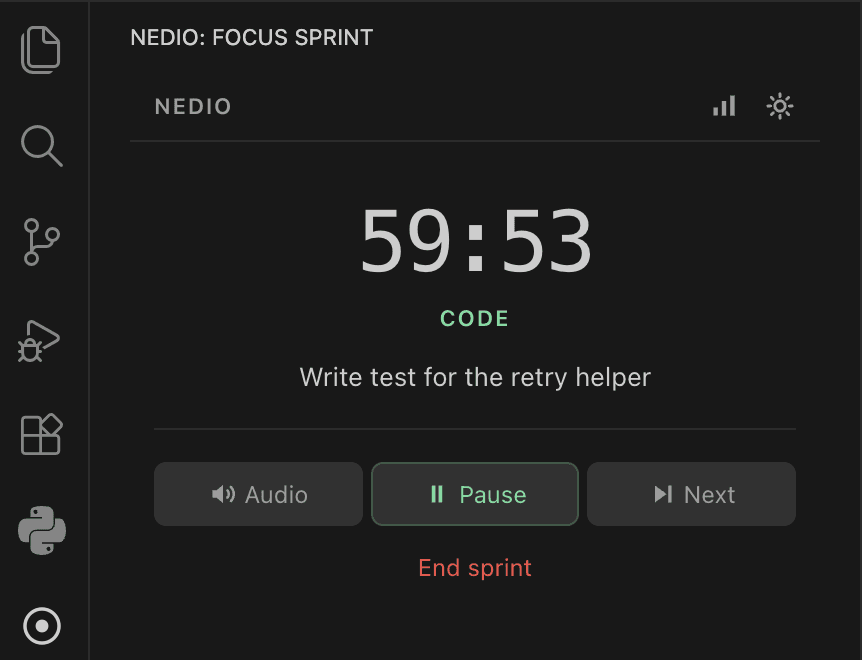
Focus mode in VS Code is not a focus timer
“Focus mode” in VS Code usually means Zen Mode: hide chrome, full screen, centered editor. The shortcut is Ctrl+K Z on Windows and Linux, Cmd+K Z on macOS. Marketplace extensions named Focus Mode go further and dim every line except the one you are on. None of that starts a clock, names a task, or writes down what shipped.
A VS Code focus timer is a different job. NEDIO leaves the layout alone and bounds the work: one goal, one duration, music that starts with the block, a status bar countdown, a close-out. Zen Mode can sit next to it. If you enable Zen Mode with zenMode.hideStatusBar left at its default, the countdown disappears with the rest of the chrome — keep the sprint panel open, or leave the status bar visible, if you still want the time in sight.
Time tracking without reading the workspace
A Visual Studio Code time tracker usually means an automatic plugin: heartbeats on every file, language breakdowns, a number for “hours coded.” That is useful for billing and for seeing where the cursor spent the week. It is a poor answer to “did I protect the work I said I would.”
NEDIO’s time tracking is the sprint log. Each block stores the planned duration, the work mode, whether you finished, and the line you wrote at the end. Weekly focus statistics then show minutes and patterns — not which file you hovered. The focus time tracker page is the same model in the browser. Editor sprints and browser sprints share one history, which is the only way a week of mixed work stays comparable.
It will not replace a WakaTime-style VS Code time tracker, and it does not try to. Automatic monitors need workspace access; NEDIO is declared as supported in untrusted workspaces because it has nothing in the folder to read.
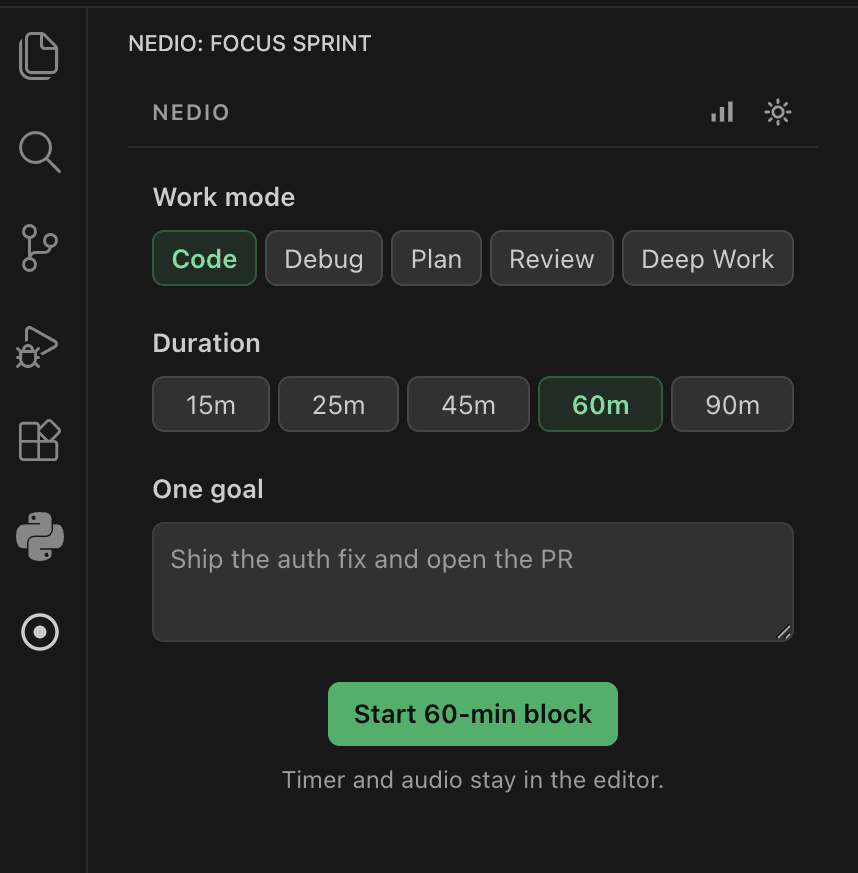
Work modes, because not all coding is coding
Every sprint is tagged with one of five modes: code, debug, plan, review, or AI agent.
This is one tap, and it is the tap that makes the rest possible. A debugging hour and a code review hour are not the same activity, and averaging them together produces a number that describes neither. Tagging the block is what lets AI Review compare like with like later.
Agent is the mode for a block spent steering a model — prompt, wait, read a diff — rather than typing the characters yourself. Calling that “code” makes your own history harder to read. Set the mode you use most as your default and you will rarely touch it.
Where it sits among VS Code productivity extensions
Lists titled “best VS Code plugins 2022” still circulate. They mix formatters, Git overlays, themes, and a countdown, then rank the pile as if those were one category. A productivity stack is several slots. NEDIO fills only the focus-timer slot.
| Job | Usual tool | What NEDIO does |
|---|---|---|
| Focus timer / Pomodoro | Status-bar countdown extensions | Timer, goal, close-out, music, and a session log |
| Time tracking | Automatic monitors such as WakaTime | Intentional sprints only — no file-level heartbeats |
| Distraction-free canvas | Built-in Zen Mode / focus mode | Leaves layout alone; pairs with Zen Mode if you want both |
| Git, lint, themes | GitLens, ESLint, your theme of choice | Not this slot, and not trying to be |
If you are after productivity extensions for VS Code, install the editor tools you already trust, then add a timer that records the block instead of only counting it down. A 2022 roundup cannot tell you which timer still fits an editor that now includes agents; the close-out line and the work mode are what changed.
What it never reads
NEDIO reads no workspace content. Not your source, not your file names, not your repository name. There is no code analysis feature to opt out of, because there is no code analysis.
This is why the extension declares itself supported in untrusted workspaces and in virtual workspaces. Opening a stranger's repository does not change what NEDIO can see, and its server address is fixed at build time, so a folder cannot point it somewhere else.
What it does store is what you type into it: the goal of a sprint and the line you write at the end. Product telemetry is limited to events — panel opened, sprint started, an error code — never the text of a goal or a review, and it follows your editor-wide telemetry setting as well as its own.
Commands
Everything is reachable from the command palette under the NEDIO category.
NEDIO: Start Sprint
Open the panel with your defaults already filled in.
NEDIO: Connect This Editor
Link the editor to your account so sessions share one history.
NEDIO: Disconnect This Editor
Unlink this machine without touching your account.
NEDIO: Open NEDIO in Browser
Jump to the full app for AI Review and ledger.
NEDIO: Refresh Plan and Usage
Re-check your plan after upgrading.
NEDIO: Show Logs
The output channel, for when support asks.
Settings
Five settings. There is deliberately no sixth.
| Setting | Values | What it does |
|---|---|---|
nedio.defaultDuration | 15 · 25 · 45 · 60 · 90 | Duration pre-selected when the sprint panel opens. Default 25. |
nedio.defaultWorkMode | code · debug · plan · review · agent | Work mode pre-selected when the panel opens. Default code. |
nedio.showStatusBarTimer | on / off | Show the running sprint and countdown in the status bar. |
nedio.silenceNotifications | on / off | Enable Do Not Disturb for the length of a sprint, then restore it. |
nedio.telemetryEnabled | on / off | Product events only, and it follows the editor-wide telemetry setting. |
Browser or editor — one history either way
The extension is not a cut-down copy of the web app. It is the same account and the same session history, reached from a different place. Sprints you run in the editor and sprints you run in a browser tab land in one record.
That matters more than it sounds. The AI Review compares your sessions against each other, so a split history would mean comparing half your work to the other half and calling the difference a finding.
AI Review itself stays in the browser. An editor is a bad place to read a page of statistics, and pretending otherwise would mean building a second surface for it before the first one has earned its keep.
Frequently asked questions
Is NEDIO a VS Code Pomodoro extension?
Yes. It is a Pomodoro timer that runs inside Visual Studio Code: pick a duration, name the goal, and start. Audio and the status bar countdown begin together. When the block ends, you write one line about what landed. That close-out is what most VS Code Pomodoro plugins skip.
Is it a Visual Studio Code time tracker?
It tracks the sprints you start on purpose — duration, work mode, completion, and the note you write at the end. It is not an automatic activity monitor. File names, languages, and idle heartbeats never enter the record, because NEDIO never reads the workspace.
Does it replace WakaTime or other automatic time tracking?
No. WakaTime and similar VS Code time trackers measure how long the editor was active on a file. NEDIO measures the blocks you protected. They answer different questions, and they can coexist. Use automatic tracking for project totals; use NEDIO when you want a focus timer whose log matches what you meant to do.
Is VS Code focus mode the same as a focus timer?
No. Focus mode in VS Code usually means Zen Mode: hide the activity bar, tabs, and often the status bar so the editor is the only surface. A focus timer bounds the work itself. You can run both — Zen Mode for a quieter canvas, NEDIO for the countdown — but if zenMode.hideStatusBar is on, keep the sprint panel open or turn that setting off so the timer stays visible.
Does NEDIO show a status bar timer in VS Code?
Yes. While a sprint runs, the status bar shows the remaining time and the current goal, for example 32:14 · fix auth redirect bug. Turn it off with nedio.showStatusBarTimer if a visible clock is its own distraction. The sidebar panel keeps working either way.
Does it work in Cursor?
Yes. Cursor is built on VS Code, so the same extension installs and behaves identically. If most of your work is AI-assisted, the Cursor page covers what changes about measuring your own sessions when an agent writes part of the code.
Does NEDIO read my code?
No. The extension reads no workspace content — not file contents, not file names, not repository names. It is declared as supported in untrusted workspaces for exactly that reason: there is nothing in your folder for it to read, and its server address is fixed at build time so an untrusted folder cannot redirect it.
Do I need an account to start a sprint?
You can run the browser app with no account at all. The extension asks you to connect an editor so your sprints land in the same history as your browser sessions — otherwise AI Review would be built on half your work.
Does the music play through the editor?
Yes. Audio runs inside the extension, so there is no separate browser tab or music app to manage. Tracks are instrumental — lo-fi and ambient, no lyrics and no ads.
Will it mute my notifications?
Only if you ask it to. Turn on nedio.silenceNotifications and the extension enables the editor's Do Not Disturb mode while a sprint runs, then restores whatever the setting was before.
Is the extension free?
The extension is free, and so is everything it does in the editor: the timer, work modes, goals, the end-of-sprint review, your session log, and weekly focus statistics. It needs a free NEDIO account. The free plan includes 60 minutes of focus audio a day, and using it up also stops new sprints until it resets. Pro removes that cap and adds AI Review on the website, which reads your session history back and looks for patterns in it.